|
User profile
|   |
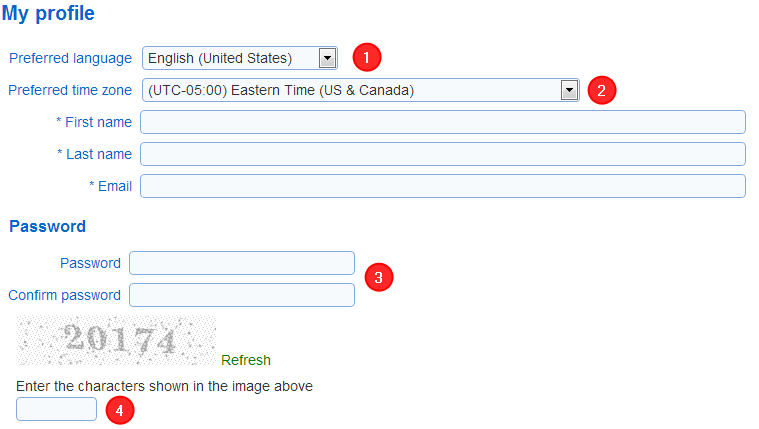
The my profile screen allows user to manage their information in Novi Survey and to change their password. The page is also used when user self-register from the login page or the landing page.
- To access the Profile screen, click on the Profile tool at the top right of the screen.

1. The preferred language used in the screens for the system. The system is fully available in English, French, and Arabic. The preferred language in the profile screen is independent of the languages specified for surveys.
2. The preferred time zone determines the display of time fields in the system. For example, the start and completion times for a response in the Responses screen, or times shown in reports are affected by the preferred time zone specified in the profile.
3. To change your password type in the desired password in fields 'password' and 'confirm password'. Identical passwords must be entered in the two fields. The new password does not take effect until save is pressed in the ribbon menu. Passwords must have at least as many characters as specified in the system configuration and include one upper case letter, one lower case letter and one digit.
4. When a user tries to self-register from the login page, they will be presented with a captcha. The user must enter the correct sequence of digits shown on the screen to be able to create their account for the system.
Login name: If the system is configured to use login names that are different from the email address of users and is not configured to use an external directory, the login name can be changed in the profile page.
Special case of user self-registration after clicking on an email invitation link
If a user navigates to this page when trying to self-register and after clicking on an email invitation link, then the information pre-populated for the user will correspond to the information for the person associated with the invitation. Any changes made by the user to their personal information in the page will be reflected in the person list associated with the invitation. Also, it will be reflected whenever the person is shown (e.g., in a demographic question, or in a person list).
Multi-factor authentication
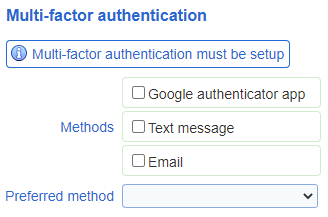
Users can setup multi-factor authentication based on either the Google authentication app, text messages, or emails. When using the Google authentication app, the setup for the multi-factor authentication requires scanning a QR code in the app. For multi-factor authentication based on text messages, a mobile phone number and a mobile service provider are required as part of the profile. In all cases, a code is either shown in the app or send via text or email to the user upon login. The code must be entered in the system before access is granted. If the system is not set to allow or require multi-factor authentication then the profile omit the section for setting up multi-factor authentication. If the system is set to require multi-factor authentication, then message 'Multi-factor authentication must be setup' is displayed and the user must configure at least one method for multi-factor authentication before gaining access to the system.
The preferred method for multi-factor authentication determines how the authentication code is sent to the user. If more than one method is setup, the user can request that the code be handled through a non-preferred method (for example in the case when they do not obtain the code from the preferred method). The optimal configuration for most users is to use the Google authenticator app as the preferred method and also configure the email method.