NoviSurvey | NoviSystems
Person list - Persons
Previous Topic  Next Topic 

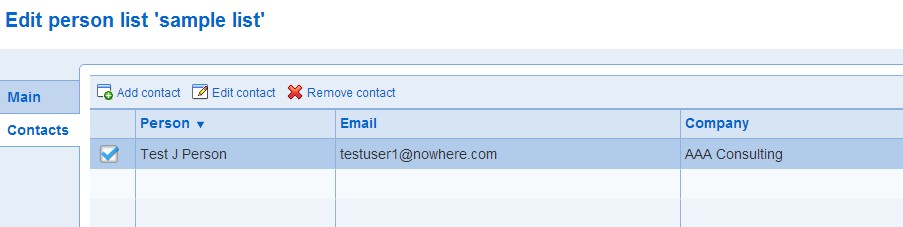
The persons tab is used to manage the content of the list.


Changes to data for the persons in the list, addition of new persons or deletion of persons may be reflected immediately for survey invitation groups depending on their status.


Note that changes to a list are not saved until the Save button is pressed at the bottom of the screen.


New


To add a new person in the list, use the Add tool.


Enter the person information and press OK. The new person will appear in the table listing the persons.

Edit

To modify the data for a person, select the person and use the Edit tool.

Modify the data and press OK.

Delete

To delete a person, select the person and use the Delete tool.

Import

To import a list of person from a file, use the Import tool.

Browse to and select the file with the data to import. The file should be in comma separated format (csv) and conform to the format specified by the sample file (see also File format for persons and users). The sample file is available from the link to the right of the Browse button. Mandatory data in a column is indicated in by the presence of an asterisk (*) in the column header (e.g., Email*). Rows in the file that are missing a mandatory value will not be imported.

Two tables of records are created from the data in the file. The Good records table contains the records that can be imported in the person list. The Bad records row contains invalid records that cannot be imported. Records may be invalid because  they are missing mandatory values or because the email address in the record does not have a valid format.

The Good records table comprises an Import column. The check boxes in the Import column can be used to avoid importing specific persons.

After reviewing the Good records table, press the Import button to finish the import of the users in the person list. Note that the new persons in the person list are not saved permanently until the Save button is pressed at the bottom of the screen.

Note that the import only creates new persons and cannot be used to update persons already recorded in NoviSuvey. Persons in NoviSurvey are identified through their combined first name, last name, and email. Two persons are considered to be the same if they have identical first name, last name and email. When a file contains a person with the same first name, last name and email as a person already in NoviSurvey, the record in the file is skipped. Even through the person record is not updated, the person is included in the list with the other Good records from the file.


Combine

To combine the list of person with another list, use the Combine tool.

Select the list to which the current list should be combined with and select the type of combination.

The combination option are illustrated below. The current list is represented by the left circle. The list combined with the current list is represented by the right circle. The result of the combination operation is the represented by the shaded area.

  • Union
  • Intersection
  • Minus

To perform the combination, press OK. Note only the current list is modified through the combination operations. The list that is combined with the current list is not changed.


See also How to work with tables