Novi Survey | Novi Systems
Page conditions
Previous Topic  Next Topic 


Page conditions are conditions that control whether a page in the survey will be shown to a respondent. The conditions are based on the respondent's answers for question in page preceding the page with the condition. An alternative to page conditions is skip logic.


For example, in a survey about cell phone usage, the first page might contain a question asking the respondent if they own a cell phone. Then, all subsequent pages in the survey would contain a condition requiring a positive answer to the question. If the respondent answered "No" to the question about ownership of a cell phone, they would not be asked for any further question.


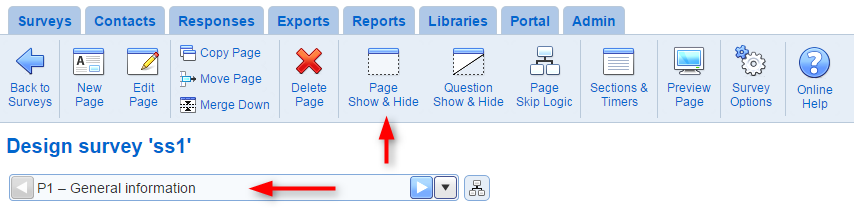
Page conditions are added to a page from the Page detail screen.


Conditions are defined in groups. Each group comprises a set of conditions. Page conditions are evaluated for each group individually and the results for the groups are combined together to produce a single Show/Don't show value. Groups for conditions of different types (e.g., question conditions and parameter conditions) are then combined to produce a final Show/Don't show value. This value determines if the page will be shown to the respondent.

Conditions can be defined for the answers to question in the survey, for values of URL parameters for the response, and for demographic information fields for the participant. If a condition group includes conditions for both answers to questions and URL parameters, the condition group will be combined based on the specified operator ('and' by default).

All conditions refer to a specific question or URL parameter in the survey. See table below for details on how to define conditions, How to: Work with page conditions and skip logic , and How to: Use condition operators.


Within a condition group, the value for the condition can be combined in either of the following ways:

  • All the following conditions apply: The value for the group will be Show if the values for all of the conditions in the group is pass. Otherwise, the value for teh group will be Don't show.
  • Any of the following conditions apply: The value for the group will be Show if the value for at least one of the conditions in the group is Show. Otherwise, the value for the group will be Don't show.

The value for the groups can be combined together in either of the following ways:

  • And: The value is Show if the value of the adjacent groups are both Show. Otherwise the value is Don't show.
  • Or:  The value is Show is the value for one of the adjacent group is SHow. Otherwise the value is Don't show.

Note that the values for the groups are combined in the order in which they are defined.

Example:

group1 OR group2 AND group3 OR group4 will be evaluated as:

value12 = group1 value OR group2 value

value123 = value12 AND group3 value

value1234 value123 OR group4 value


Delete condition group

To delete a group of conditions, use button Delete

Add condition group

To add a new condition group to the page conditions, use button New Condition Group

Add a condition in a group

To add a condition in a group, use the New tool for the group.

Edit a condition in a group

To edit a condition in a group, select the condition and use the Edit tool.

Delete a condition in a group

To delete a condition in a group, select the condition and use the Delete tool.

Conditions for multiple choice questions

Conditions for multiple choice questions can specify combination of choices.

Conditions for open ended questions

Conditions for open ended questions can specify a sub-question for which the condition is defined.

Conditions for rating and ranking questions

Conditions for rating and ranking questions can specify a sub-question for which the condition is defined. Values for the sub-questions have value from 1 to n where n is the number of items in the question.

Conditions for matrix questions

Conditions for matrix can specify a matrix segment and row for which the condition is defined. If the matrix segment has columns that specify labels, the condition can be specified for a specific column in the segment.


See also How to work with tables, Page detail, Skip logic