Novi Survey | Novi Systems
Create a new web survey
Previous Topic  Next Topic 

To create a new survey from scratch, execute the following steps in order. Not all fields from the Add or edit survey user interface are detailed in this How To. Fields that are not explicitly referred to can be left blank. For more information on each of the fields for survey, see Survey set up.


For more information on how to manage the question in a survey, see Page detail. For details regarding questions types, see Questions and Presentation elements.


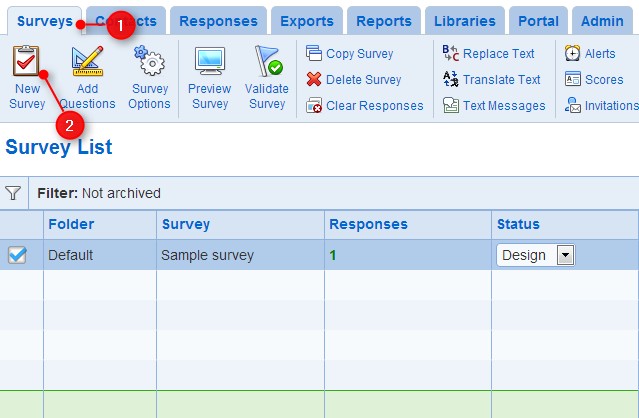
Select the Home tab in the ribbon at the top of the browser

Click on the Surveys icon

Click on the New button in the header of the table for surveys

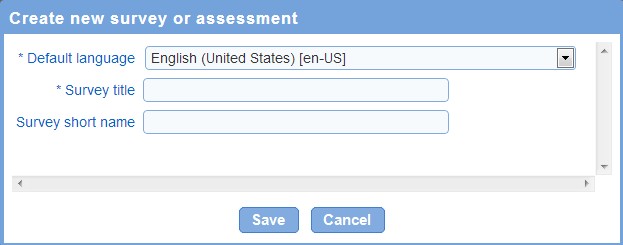
Choose the language for the surveys

Use button to move languages to the selected box and button to deselect languages

Choose the default language for the survey

Enter the name for the survey. One name is required for each selected language

Choose the folder that will contain the survey

Choose the template for the survey. The template controls the appearance (color, font, ...) of the survey as seen by respondents.

Set the status for the survey. When the survey is ready to be taken by respondent, change the status to Open.

Click on the Deployment tab

Choose whether to show the back button to respondents

Choose the dates when the survey should open and close to respondents. The dates can be left undefined.

Choose to show or to not show a completion page to respondent when they finish answering the survey

Select the completion tab

If the completion page option is selected, define a message for the completion page for each of the language for which the survey is defined

Choose the alignment of the completion message

Choose the action to perform when respondents push the forward button after they complete answering the survey

Click on the Save & Design button